

![How to Easily Fix: Microsoft Store Won’t Open Error [2023]](https://technoajeet.net/wp-content/uploads/2023/11/maxresdefault-8.jpg)

The Microsoft Store serves as a gateway to a myriad of applications, games, and entertainment. However, encountering an issue where the Microsoft Store won’t open can be frustrating. This article aims to guide users through comprehensible steps to resolve this issue, ensuring a seamless experience within the Microsoft ecosystem.
Understanding the Common Causes
Outdated Windows Version
One of the primary causes behind the Microsoft Store not opening is an outdated version of Windows. The lack of necessary updates might disrupt the Store’s functionality.
Store Cache and App Updates
Accumulated cache or pending updates within the Microsoft Store can lead to malfunctions, preventing it from opening correctly.
Antivirus or Firewall Interference
Sometimes, the interference of third-party antivirus or firewall settings might restrict the Microsoft Store’s access, causing it to fail in opening.
Step-by-Step Solutions for Microsoft Store Won’t Open Error
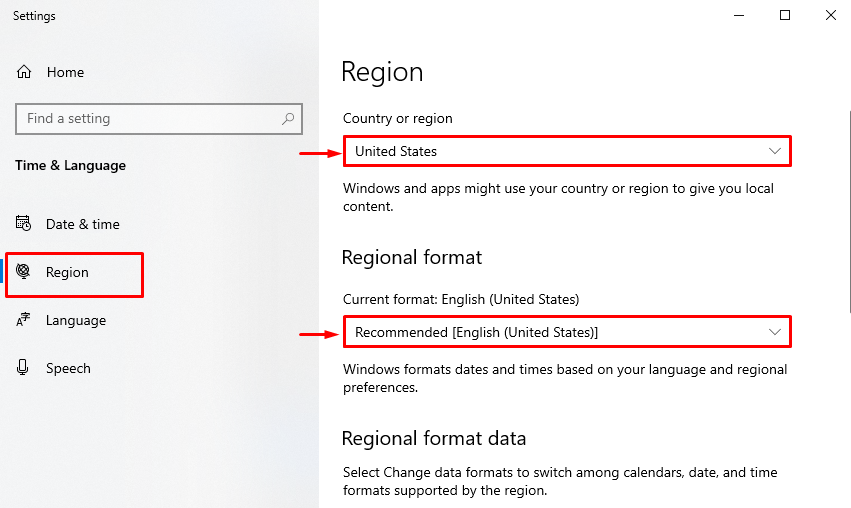
Update Windows to the Latest Version
Ensure your Windows operating system is up to date by checking for pending updates. Windows updates often include bug fixes that can resolve issues with the Microsoft Store.
Clear Microsoft Store Cache and Update Apps
Clearing the Store cache and updating installed apps can eliminate glitches that hinder the Store’s operation.
Check Antivirus or Firewall Settings
Review your antivirus or firewall settings to ensure they are not blocking the Microsoft Store’s access. Adjust settings if needed to allow the Store to function properly.
Reset Microsoft Store
Resetting the Microsoft Store can effectively resolve issues. This action clears the Store’s cache, potentially fixing any underlying problems.
Run Windows Store Apps Troubleshooter
Utilize the built-in Windows Store Apps Troubleshooter, which automatically identifies and rectifies issues preventing the Store from opening.
Additional Troubleshooting Tips

Modify User Account Control Settings
Adjusting User Account Control settings can often resolve permissions-related issues that affect the Microsoft Store’s functionality.
Re-register the Microsoft Store
Re-registering the Microsoft Store can refresh its functionality and repair underlying issues that hinder its operation.
Perform System File Checker Scan
Conduct a System File Checker scan to identify and repair corrupted system files that might be causing the Store to malfunction.
Ensuring Future Prevention
To prevent the recurrence of the Microsoft Store won’t open error, it’s advisable to regularly update Windows, clear the Store cache, and maintain a proactive approach towards potential firewall or antivirus interference.
FAQs
Why does the Microsoft Store fail to open at times?
The Microsoft Store might fail to open due to various reasons. It could be caused by an outdated Windows version, accumulated cache, pending updates in the Store, antivirus or firewall interference, or corrupted system files. These issues can disrupt the Store’s functionality, resulting in the failure to open.
How can I reset the Microsoft Store to fix the error?
Resetting the Microsoft Store is a straightforward process. You can reset the Store by following these steps:
Open “Settings” on your Windows system.
Go to “Apps” and select “Apps & features.”
Locate and click on “Microsoft Store.”
Click on “Advanced options.”
Scroll down and select “Reset.” This action will clear the Store’s cache and might resolve the issue causing it not to open.
Are there specific antivirus programs known to conflict with the Microsoft Store?
Yes, certain antivirus or firewall programs might conflict with the Microsoft Store. Third-party security software like McAfee, Norton, or some less common antivirus programs might have settings that block or restrict the Store’s access. It’s advisable to check the settings of your antivirus or firewall software and make necessary adjustments to allow the Microsoft Store to function properly.
Is it necessary to regularly update Windows for the Microsoft Store to function correctly?
Yes, it’s essential to regularly update Windows for the Microsoft Store to function correctly. Windows updates often include bug fixes, security patches, and performance improvements that are crucial for the proper functioning of the Microsoft Store. Ensuring your system is up to date helps in avoiding issues and ensuring a smooth experience with the Store.
What if the issue persists even after following all troubleshooting steps?
If the issue persists despite following all troubleshooting steps, it might be beneficial to reach out to Microsoft Support for further assistance. Additionally, consider checking online forums or communities where users discuss similar issues. It’s possible that a more specific or complex problem might require personalized guidance or specialized solutions.
Conclusion
Resolving the Microsoft Store won’t open error doesn’t need to be an arduous task. By following the outlined steps, users can efficiently troubleshoot and fix the issue, ensuring a seamless experience within the Microsoft Store.